Breaking News
Loading...

Recent Post

Showing posts with label microsoft. Show all posts
Wednesday, December 18, 2013
Why cross-platform gaming is Microsoft's secret weapon

Why cross-platform gaming is Microsoft's secret weapon

Microsoft has taken major heat for its recent reinvention efforts, but amid public lambasting of Windows 8 and the Surface tablets, a critical new development has largely been ignored: The company has both the hardware and software to dominate the four most important gaming screens in your life.

Your PC. Your tablet. Your phone. Your TV. Microsoft can offer a consistent gaming experience across all of them, thanks to Windows 8, Windows RT, Windows Phone 8, and Xbox—four platforms that are uniquely glued together by our omnipresent Microsoft Accounts, and, by extension, the personal profiles and credit card numbers locked within.

Indeed, if you own multiple Microsoft devices and want proof of the gaming synergies that Microsoft can deliver, look no further than Skulls of the Shogun.
Released in January across Windows 8, Windows RT, Windows Phone 8, and Xbox 360, Skulls is a turn-based strategy game that takes full advantage of Microsoft's cross-platform gaming hegemony. Players on disparate devices can go head-to-head in multiplayer combat, breaking down the historical barriers among the various hardware types. It's an excellent feature in an excellent game, as well as a harbinger of how gaming will evolve.

So why isn't Microsoft making a bigger deal about cross-platform play? Xbox consoles and Windows PCs are already powerful gaming platforms, so using these assets to promote the greater Windows ecosystem would help sell a lot of smartphones and tablets, right?

In theory, yes. But if Microsoft is to rule the gaming universe, it will need a big assist from the architects of the gaming universe: developers.
Skulls of the Shogun is fantastic in Windows 8 (shown here) but you can also play it on any Microsoft hardware.

Tapping developer talent

To help entice developers to create games for Windows 8, Microsoft trucked out shiny new software development tools at the 2012 Game Developers Conference. Senior Xbox Live Product Marketing Manager Peter Orullian says Microsoft has had great success convincing developers to develop games for Windows 8 with the new Xbox Live SDK, but that’s not surprising. After all, marketing Xbox Live is part of his job description.

What is surprising is his promise that Microsoft is going after mobile gaming in a big way, pushing developers to take advantage of Xbox Live’s servers to build cross-platform games with asynchronous multiplayer elements and cloud storage.


During a recent phone conversation, Orullian confirmed that at least two more cross-platform games are coming to the Windows Store. You'll be able to start each game on one device, pause it when life intervenes, and then start again right where you left off on a completely different device.
Hopefully 2013 is the year Windows Phone gaming becomes more than a convenient way to keep track of your Xbox Live friends list.

While I couldn't get Orullian to share any details on the new Microsoft home console that's likely to be announced later this year, he was happy to talk at length about how Microsoft's new Windows development tools are designed to help studios port their titles to different Microsoft devices with minimal effort.

"For example, when you build a game for Windows 8 with our new tools, the additional work required to bring it to Windows Phone 8 is fairly incremental,” said Orullian. “So, if I start playing a game of solitaire on my desktop, I can leave for work and pick up right where I left off on my Windows Phone."

Orullian points to the Music, Video, and Games apps that come preinstalled with Windows 8 as proof that Microsoft is committed to unifying digital entertainment across devices in the new Windows ecosystem. But while these apps allow you to share your media and keep tabs on your Xbox Live account across Windows 8, Windows Phone, and Xbox 360, they aren't actually games.

Indeed, Microsoft must start rolling out great cross-platform games for all its sundry hardware as soon as possible. Right now. Before the competition has a chance to eat its lunch.

Competition from all corners

Before we go any further, let's acknowledge that cross-platform play isn't a new development. Ever since the iPad's release, Apple has supported universal apps that play equally well on iPhones and iPads. Then there's Valve, which made it easy to play PC games on our TVs when it added Big Picture mode to Steam last year.
The Wii U tablet can stream select games and movies right from the console, allowing you to enjoy your digital entertainment without hogging the TV.

As for Nintendo, its Wii U console system, while struggling, literally comes packaged with a separate screen a tablet-slash-controller with remote play features. The upshot is that you can play some of the very same games on either the bundled handheld or your TV screen.

For its part, Sony doubled down on the multiscreen bandwagon last month when it announced the Playstation 4. In Sony's vision of multiscreen gaming, you can play PS4 games on either your living room TV or your Playstation Vita handheld (assuming you paid for that device as well). But it gets even weirder: The PS4's new DualShock controller will also include a "share" button that displays real-time video of your game play on another person's screen.

And finally we have Microsoft. Between Xbox consoles, Windows Phone handsets, and the venerable PC, Microsoft has homesteaded on three of the four most important gaming screens for years. The new Windows regime, however, puts Microsoft on tablets as well, providing an entry point to do interesting things that are (for the moment) beyond the reach of competitors.

Games for Windows Live: a cautionary tale

Microsoft has actually dabbled with cross-platform gaming in the past via Xbox Live. First there was Games for Windows Live, a PC client that allows players to log into their Xbox Live accounts and earn Achievement Points in select PC games. Later came a handful of Windows Phone games, which also hooked into Xbox Live.

Unfortunately, most of the games failed to use Xbox Live as anything more than a dumping ground for Achievement Points. The few games that did offer true cross-platform play often failed spectacularly because players on dramatically different hardware devices were pitted against each other in fast-paced, real-time competition.

Perhaps the worst offender was Shadowrun, a first-person shooter released in 2007 that allowed Xbox 360 players to go head-to-head against mouse- and keyboard-wielding PC gamers.

Fast-paced Shadowrun multiplayer matches favored mouse-and-keyboard PC players over Xbox 360 players.

Players and critics lambasted the game for a variety of reasons, but the multiplayer disparity between PC and console players was always front and center. PC gamers on mice and keyboards simply had a speed advantage over Xbox gamers sadled with their handheld controllers. Similarly, PC gamers playing with the highest resolution settings could see more of the game environment, and this too gave them an advantage over console competitors.

The upshot? Fast-paced games that reward accuracy and quick reflexes simply aren't fun to play in cross-platform multiplayer matches. Slower, asynchronous, turn-based multiplayer games, however, are much better suited to Microsoft's cross-platform approach.

Significant challenges lay ahead

Borut Pfeiffer, an independent developer who worked on Skulls of the Shogun, says the game's multiplayer element succeeds across multiple platforms because it's anchored by turn-based strategy, and challenges players' wits instead of reflexes. What's more, the Skulls Anywhere cross-platform multiplayer mode lets you play on any type of Microsoft hardware. You can start a game on your Xbox 360, playing against someone on a PC. Then three hours later, both you and your competitor can switch to playing on a Surface RT and Windows Phone.

Skulls is a successful cross-platform game because it's turn-based with a beautiful, simple 2D art style that looks great on screens large and small.

Pfeiffer says supporting asynchronous multiplayer across four platforms gives Skulls an edge over other games because it can draw from a much larger and more diverse pool of players. That edge, however, came at a price: Coding the game for cross-platform multiplayer required extra development time and caused extra frustration. Likewise, the kind of cross-platform multiplayer employed in Skulls is only feasible for games with touch-friendly interfaces that can be paused and resumed at will.

"It’s a tough design challenge, building a cross-platform game,” wrote Pfeiffer in an email. “While it looks like there’s definitely demand for it, as a developer you really have to solve a lot of problems at once.”

Microsoft must champion multiscreen gaming

Despite the challenges, Pfeiffer predicts we'll see a slew of new asynchronous games entering the Microsoft ecosystem in the next few months. If he's right, Microsoft Surface tablets (and mobile gaming in general) are going to get a lot more exciting this year. Our tests suggest the Surface Pro isn't great for hardcore PC gaming on the go, but it might just be the perfect device for staying up-to-date in your favorite cross-platform games when you're away from home.

Microsoft's Surface Pro is a decent PC gaming platform, but it could be so much more.

Bottom line

Microsoft needs to step up to the plate and champion cross-platform gaming across the new Windows ecosystem. It's already got the desktop, tablet, and phone components in place, and a new Xbox console is waiting in the wings. So what we need to see now is concerted forward movement with or without the support of third-party developers.

Microsoft needs a big, showy, game-changing title, and if someone won't build it independently, Redmond needs to strike out on its own. Indeed, if the company can marshal a veritable army to build the Surface tablets, it can surely assemble a highly focused team of commandos to deliver a title that gets the whole world talking about cross-platform game play.


In a perfect world, the game would be good enough to create a franchise with all the star power that Zelda and Mario delivered for Nintendo in the '80s. But even something simple and elegant along the lines of a cross-platform Angry Birds would work wonders in giving people a reason to care about Microsoft's unique four-screen proposition. Windows-based cross-platform game play offers Microsoft a powerful competitive advantage in 2013, but the window of opportunity won't be open forever.
Deep inside Windows 8.1's hidden new features

Deep inside Windows 8.1's hidden new features


After months of teasing and torture, the Windows 8.1 Developer Preview is finally here, ready to deliver us from many of Windows 8’s glaring flaws. You’ve no doubt already heard about Windows 8.1’s biggest new features: The Start button is back, Bing owns the Search charm, the split-screen Snap feature is customizable, yada yada yada. You know the drill.

What hasn’t been talked about much are the subtler changes—the hidden secrets tucked away in the dark corners of Windows 8.1, whispering and waiting for a turn to shine rather than shouting their proverbial presence from the proverbial rooftops.

No, these gems aren’t as flashy as Windows 8’s newfound ability to sync apps and Internet Explorer 11 tabs across multiple devices, but they’re arguably just as (if not more) handy. And there’s no way you’ll find them unless you dig deep...or read this enlightening guide.

Shut down from the Start button


Let’s start with something basic, but far from obvious.

Yes, the Start button is back...but the Start menu isn’t. So you still need to swipe through a multiclick process involving the charm bar if you want to shut down your PC if you don’t know about the Start button’s secret menu, that is.

Right-clicking the Start button that appears when you hover your mouse cursor in the lower-left corner of the screen brings up a bevy of powerful options, including quick links to deep stuff like Disk Management and Command Prompt tools.

Now, the menu itself isn’t new to Windows 8.1. What is new is the addition of a Shut Down option to said menu. Hovering over it for a second gives you options to shut down or restart your PC right then and there, no fiddling with hidden menus required.

Boot to desktop or All Apps, and more


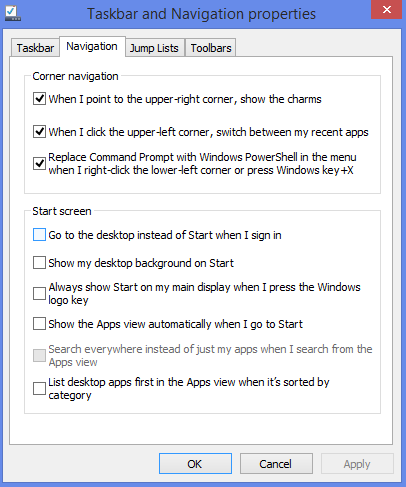
The Taskbar Properties option is another old friend with a subtle new look and a crucial one for desktop diehards. Did you hear that Windows 8.1 lets you boot directly to the desktop on start up? It does, but Microsoft clearly doesn’t really want you to do it, since the option is buried in this obscure corner of the OS.

Head to the desktop, right-click the taskbar, select Properties, and then open the brand-spankin’-new Navigation tab. There, you’ll find new options for disabling the uppermost hot corners. Those options are also available in the modern-style PC Settings, but many Start screen options can only be found here.

And how handy-dandy they are! Want to boot directly to the desktop or the All Apps screen? Here’s your chance, and the other selections are just as useful. (Show the desktop background on the Start screen? Yessssssss.)

Open the Metro version of IE 11 in multiple windows


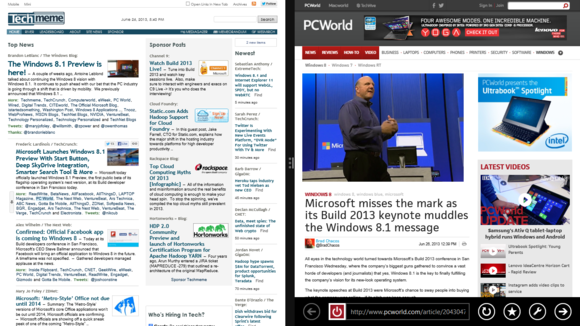
While you’re busy taking advantage of all the hot resizable Snap size action in Windows 8.1, don’t forget that you can now have a single app open in multiple Snapped windows something you couldn’t do in the original Windows 8 release.

Well, kinda.

Despite a lot of effort, I haven’t been very successful in getting that feature to function in the Windows 8.1 Developer Preview. Trying to open an app twice or Snapping an app to one side of the screen and attempting to open a second instance simply doesn’t work.

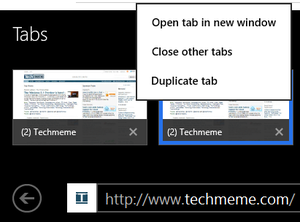
You can open multiple instances of the modern version of Internet Explorer 11, though. If you have multiple tabs open, you can long-press one of them and select Open tab in new window in the resulting pop-up box. Alternatively, long-pressing a link on a webpage brings up several options at the bottom of the screen, including that ‘Open tab in a new window’ dialog.

Selecting that option causes the page to appear in another IE 11 window, and Windows 8.1 helpfully Snaps both windows into a 50/50 split.

The great gigs in the Sky(Drive)

SkyDrive takes on a much bigger role in Windows 8.1, driving Microsoft’s vision of a seamless, cloud-connected world even further.

In fact, SkyDrive is so vital an underpinning to Windows 8.1 that Microsoft dedicates an entire section to it in the modern-style PC Settings. A vast number of settings now sync and follow you from device to device by default—including modern apps, woohoo! But if you really want to live in the cloud, you’ll need to enable some options buried three or four levels down.

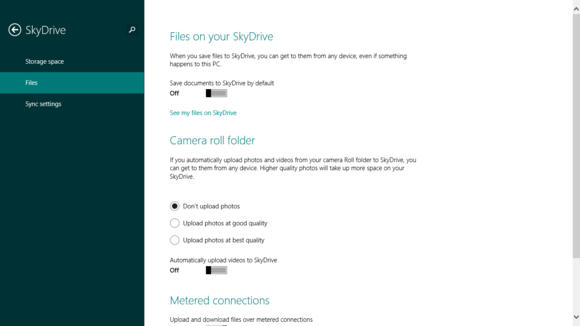
Open the charm bar, and select Settings > Change PC Settings. From there, open the SkyDrive options and select Files in the left-hand menu bar.

Here you can acquire the ability to save documents and snapshots from your Camera Roll folder to SkyDrive by default, a downright awesome new option if you want to be able to sit down at virtually any Windows 8 computer and have it feel like your own.

Hush, my darling

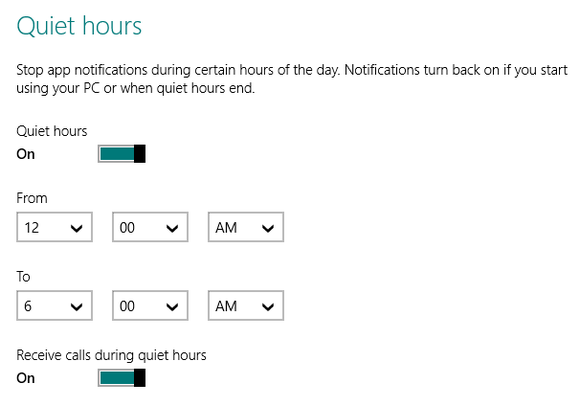
Relaxing ain’t easy if your gadget blasts alarms throughout the day. Windows 8 has joined Apple and Android in embracing notifications, which make sounds and light up your lock screen even if you’re not holding your tablet in your hand. Fortunately, Windows 8.1 lets you silence the cacophony with its new Quiet Hours setting.

This one’s buried, too. Open the Settings charm, and navigate to Change PC Settings > Search and apps > Notifications. Scroll down the page a bit until you reach Quiet Hours. By default, Windows 8.1 is set to go silent from midnight to 6 a.m., but you can change the window to any time frame you desire.

Get a grip on your apps


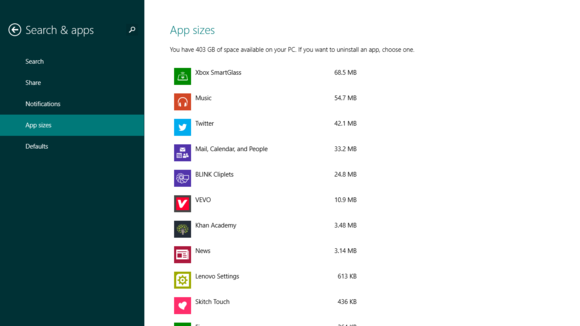
Something really irked me about the modern apps in the vanilla version of Windows 8. No, I’m not talking about their seas of wasted space (Windows 8.1 didn’t fix that!). I mean the fact that they were incredibly pesky to manage from anywhere except the Start screen. Modern apps don’t show up anywhere obvious in the desktop File Explorer’s folder structure, and you can’t eliminate them from the Control Panel’s Programs & Features interface, either. Bleh.

Windows 8.1 changes that. Huzzah!

Navigate to the Search & Apps section once again, and select App sizes in the left-hand menu. The screen populates with a full listing of all your installed modern apps, complete with the file size of each app. If you’re looking to free up some hard drive space, you can click an app to bring up an uninstall option.

Wireless Miracast pairing

People don’t likes wires, and neither does Windows 8.1. Like Android 4.2, Microsoft’s OS update includes full support for the fledgling Miracast wireless display standard, which basically acts like Apple’s AirPlay technology. It’s your PC screen, beamed to your TV or monitor as if by telecommunications magic!


Miracast is so new that you might have trouble finding compatible television sets at stores near you, but you can pick up Miracast receiver dongles that transform any TV with an HDMI port into a Miracast-compatible display. Even better, when Microsoft’s Xbox One console lands in time for the holidays, it’ll be a fully capable Miracast receiver, further deepening the synergies between Windows 8 and Xbox.

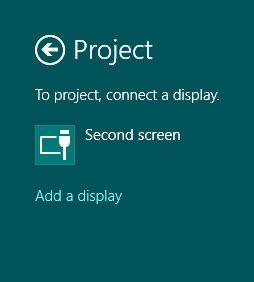
If you want to connect your Windows 8.1 device to a Miracast receiver, you can dig deep into the modern-style PC Settings. But the easier option is to open the Devices charm and select Project > Add a display. If there’s a Miracast display nearby, Windows 8 should find it.


A whole lotta printing going on
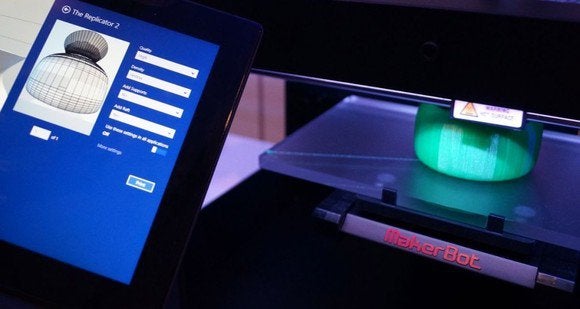
Windows 8.1 brings a bevy of improvements to the way it handles the more exotic printers popping up these days. For one thing, Windows 8.1 packs 3D printer support in the form of a driver and a native API, and hopefully—hopefully—that will make the 3D printing process as simple as the traditional 2D printing process, rather than the complicated export-filled mess that it is now.

The idea is to allow you to kick 3D printers to life using the Print option under the Devices charm, so you can print from directly within that oh-so-fresh modern interface—assuming the printer’s software takes advantage of Microsoft’s support. 
Check out the image below to see Windows 8.1 printing to a MakerBot Replicator 2 3D printer.


But the cutting-edge printing action doesn’t stop there. Windows 8.1 also includes support for NFC printers. If both your Windows device and your printer are members of the (currently rare) NFC-enabled breed, simply tapping one against the other can automatically pair the two devices for hassle-free printing action.

And if NFC or 3D printers are just a bit too adventurous for you, you’ll be happy to hear that Windows 8.1 also includes Wi-Fi Direct printing capabilities. What does that mean? Simple: You can connect directly to a Wi-Fi Direct-enabled printer without having to jump on a Wi-Fi network or fuss with installing software, though the exact method will depend on your printer and device.

What else?

We’ve only just started to dig into Windows 8.1’s nooks and crannies. Did you find any particularly interesting gems hidden in Microsoft’s OS preview? Share ’em with your fellow geeks in the comments below!
Quick Message
Press Esc to close
Copyright © 2013 Wong's Gathot All Right Reserved